Move your work to the new worksheet
MC 451 and MC 501 · for the three R worksheets
The three R worksheets (Data Wrangling, Describing Data, and Inferencing Data) have a new layout. The questions are the same, in the same order, under the same task headings. This page moves the answers you already typed into the new worksheet. Do it on your laptop.
Steps on this page
Which case is yours?
Go through this page once for each worksheet.
- You have typed nothing into that worksheet: skip Step 1. Do Step 2, then stop.
- You have typed at least one answer into it, even if it is not finished: do Steps 1, 2, 3, and 4, in that order.
Step 1: Rename your old worksheet
Renaming keeps your old answers safe when the new worksheet arrives with the same name.
- Open VS Code. In the Explorer, the list of file names down the left side of the VS Code window, find the worksheet you typed in. The table below gives its name.
- Right-click that name. A small menu opens. Click Rename in that menu. The name turns into a box you can type in, and part of the name is highlighted.
- Type the new name from the table. Typing replaces the highlighted part, so you do not delete anything first. Do not type
.qmd. Those letters stay on the end of the name by themselves. Then press Enter.
| Worksheet | Its name now | Type this |
|---|---|---|
| Data Wrangling | 11-wrangling-data.qmd |
11-wrangling-data-old |
| Describing Data, MC 451 | 12-describing-data-mc451.qmd |
12-describing-data-mc451-old |
| Describing Data, MC 501 | 12-describing-data-mc501.qmd |
12-describing-data-mc501-old |
| Inferencing Data, MC 451 | 13-inferencing-data-mc451.qmd |
13-inferencing-data-mc451-old |
| Inferencing Data, MC 501 | 13-inferencing-data-mc501.qmd |
13-inferencing-data-mc501-old |
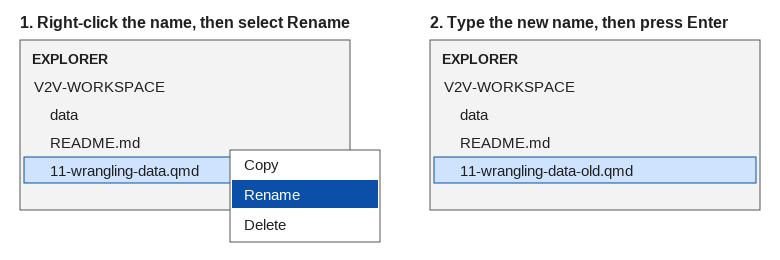
What you should see: the name in the Explorer now ends in -old.qmd, as in the second half of the picture.
Step 2: Get the new worksheet
- Click the link for your worksheet and your course once. What you should see: the page does not change. Your web browser saves the file in your Downloads folder and shows the file’s name in a small list near the top of the browser window.
- Move the file from your Downloads folder into VS Code. The guide named Put a Worksheet in Your Workspace shows each click, with a picture and a video. Open the one for your course, follow its steps, then come back to this page.
- If VS Code shows a box asking whether to replace a file that has the same name, click Replace. If no box appears, go on.
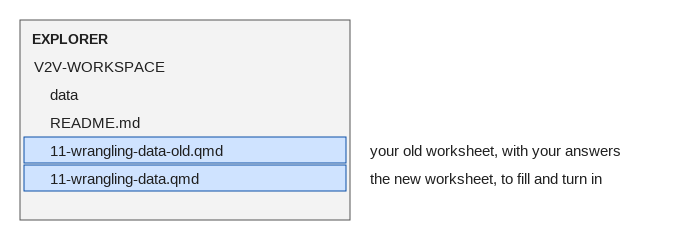
What you should see: the new worksheet’s name in the Explorer. If you did Step 1, the Explorer shows two names, as in the picture below.
Step 3: Copy your answers across
You typed two kinds of answer.
- Code: a word you typed in a gray box, where three underscores (
___) used to be. - A sentence: what you typed on the line under Your answer:.
Start at the top of the old worksheet and do these steps for one answer at a time.
- In the Explorer, click the name that ends in
-old.qmd. Your old worksheet opens. - Find the first answer you typed. Read the task heading above it. A task heading is a line that starts with
###, such as### Task 1.1. - Put the mouse pointer just before the first letter of your answer. Hold the mouse button down, move to just after the last letter, and let go. This works the same when the answer runs over more than one line. Your answer now has a colored background, as in the left half of the picture below.
- Hold Ctrl and press C. On a Mac, hold Command and press C. Nothing changes on the screen.
- In the Explorer, click the name of the new worksheet, the one without
-old. - Scroll down the new worksheet until you reach the line that starts with
###and has the task number you read in step 2. - If what you copied is code, drag across the three underscores in the gray box, the same way as in step 3. When a gray box has more than one set of underscores, they are in the same order as in your old worksheet. If what you copied is a sentence, click the empty line under Your answer:.
- Hold Ctrl and press V. On a Mac, hold Command and press V.
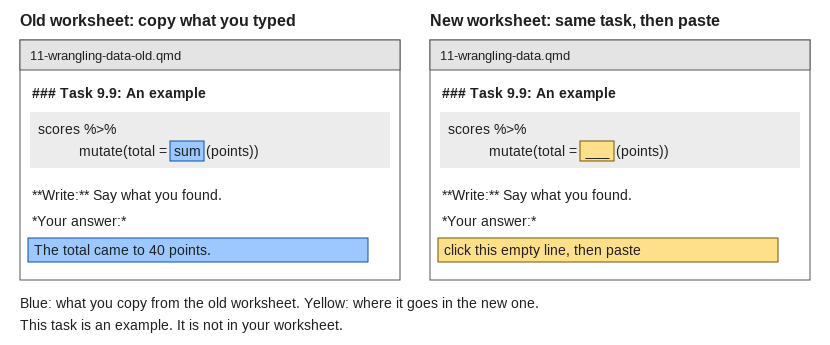
What you should see: your answer in the new worksheet, where the underscores or the empty line were.
Then start this numbered list again at its line 1, clicking the name that ends in -old.qmd, for the next answer down the old worksheet. You are done when you reach the bottom of the old worksheet, or a task where you had not typed anything yet.
Step 4: Save, then carry on
- With the new worksheet open, hold Ctrl and press S. On a Mac, hold Command and press S. Your work is saved. If a round dot showed beside the worksheet’s name on its tab above the page, the dot is gone.
- Keep working in the new worksheet from the first task you have not answered. The section named What to submit, near the top of the new worksheet, says what to turn in and where.
You turn in the new worksheet. The old one can stay where it is.