Put a Worksheet in Your Workspace
Each R week starts with a worksheet: a file you download from the course site and keep in the top folder of your course workspace, next to README.md. This guide moves it there.
Prefer to watch first? The walkthrough video Put a Worksheet in Your Workspace shows these steps.
Steps on this page
Words used here
- File: one document, such as
11-wrangling-data.qmd. The letters after the dot,.qmd, say what kind of file it is. - Folder: a container that holds files and other folders. Your course workspace is one folder.
- Downloads folder: the folder your web browser puts every file you download into.
- Top folder of your workspace: the workspace folder itself, not one of the folders inside it.
README.mdsits there.
Steps
- In VS Code, open your course workspace (guide 02). The Explorer on the left lists the workspace’s folders and files, including
00_Inbox,01_Journal,02_Literature,03_Project,04_Resources, andREADME.md. If the Explorer is hidden, select View, then Explorer (or Ctrl+Shift+E; Cmd+Shift+E on a Mac). - In your web browser, click the worksheet link on the slide or the assignment page. The browser saves the file in your Downloads folder. It does not open it.
- Open your Downloads folder:
- Windows: open File Explorer (the folder icon on the taskbar, or press the Windows key and E together), then select Downloads on the left.
- Mac: open Finder (the smiling-face icon in the Dock), then select Downloads on the left.
- Place that window and the VS Code window side by side, so you can see the worksheet in Downloads and the Explorer list in VS Code at the same time.
- Drag the worksheet from Downloads onto the empty space below the last item in the VS Code Explorer list, and let go. VS Code copies the file into the top folder of your workspace.
- In the VS Code Explorer, click the worksheet’s name to open it.
What you should see
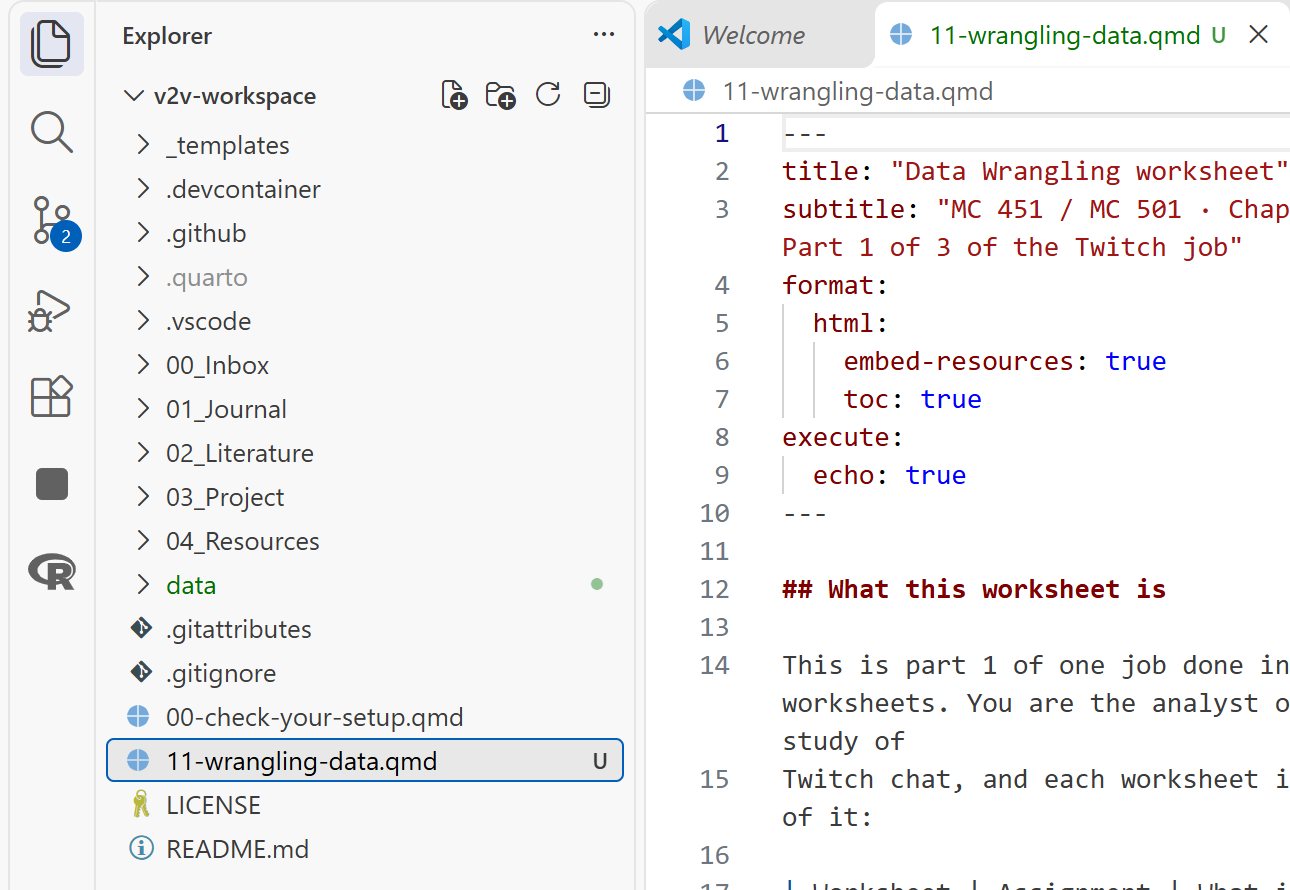
The worksheet’s name sits in the Explorer list at the same level as README.md, not indented under 03_Project or any other folder. Its name also shows on the tab above the editor.
If it does not work
- The file landed inside a folder (its name is indented under that folder’s name): in the VS Code Explorer, drag it onto the empty space below the list. If VS Code asks whether to move it, select Move.
- The browser showed the file’s text instead of downloading it: go back, right-click (on a Mac, Control-click or click with two fingers) the link, and choose Save link as… (Chrome or Edge) or Download Linked File (Safari). Then continue from step 3.
- The name ends in (1), such as
11-wrangling-data (1).qmd: you downloaded it twice. Keep working in the copy you already started. In the VS Code Explorer, right-click the copy you do not need and choose Delete. - Dragging does not work for you: in VS Code, select File, then Open File…, and open the worksheet from Downloads. Then select File, then Save As…, go to your workspace folder (the folder that holds
README.md), and select Save. Close the tab of the Downloads copy and work only in the saved one. - On a Mac, VS Code cannot open or read the file in Downloads: macOS asks before VS Code may read your Downloads folder, and a Don’t Allow blocks it. Open the Apple menu, System Settings, Privacy & Security, Files and Folders, find Visual Studio Code, and turn on Downloads Folder. Then quit VS Code completely (Cmd+Q) and open it again.
- Do not work in the Downloads copy. What you type there is not in your workspace, so it never reaches GitHub, and the worksheet’s code cannot find your
datafolder.