Open Your Course Workspace
Open your own copy of the course workspace, the folder that holds your journal, codebook, data, and drafts.
Steps on this page
Steps
Open the Command Palette: View, then Command Palette… (or Ctrl+Shift+P; Cmd+Shift+P on a Mac).
Type
AURA: Open my course workspaceand press Enter.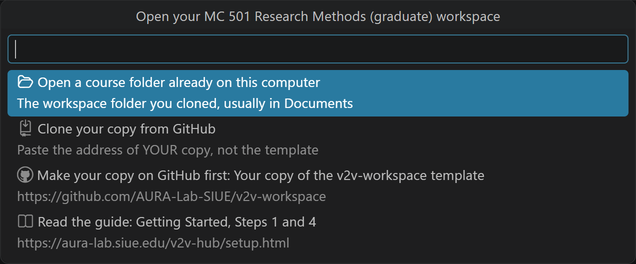
Pick one line from the list:
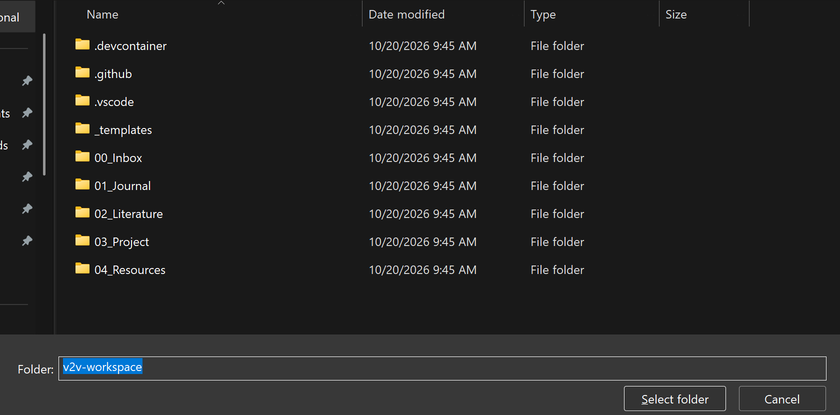
- Open a course folder already on this computer if you cloned your copy before. Choose the folder, then Select folder.
- Clone your copy from GitHub if this computer does not have it yet. Paste your repository URL and choose where to keep it. On a Mac, pick a folder inside your home folder (the one with your name, in Finder under Go, then Home), not Desktop, Documents, or iCloud Drive: when iCloud syncs those, it can move files out from under Git.
- Make your copy on GitHub first if you have no copy yet. It opens the template page, where you select Use this template.
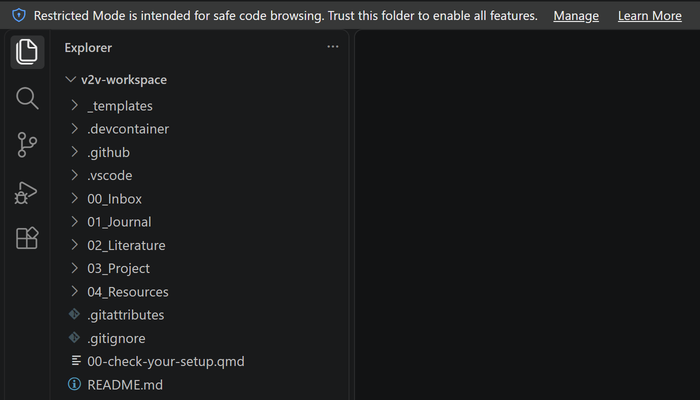
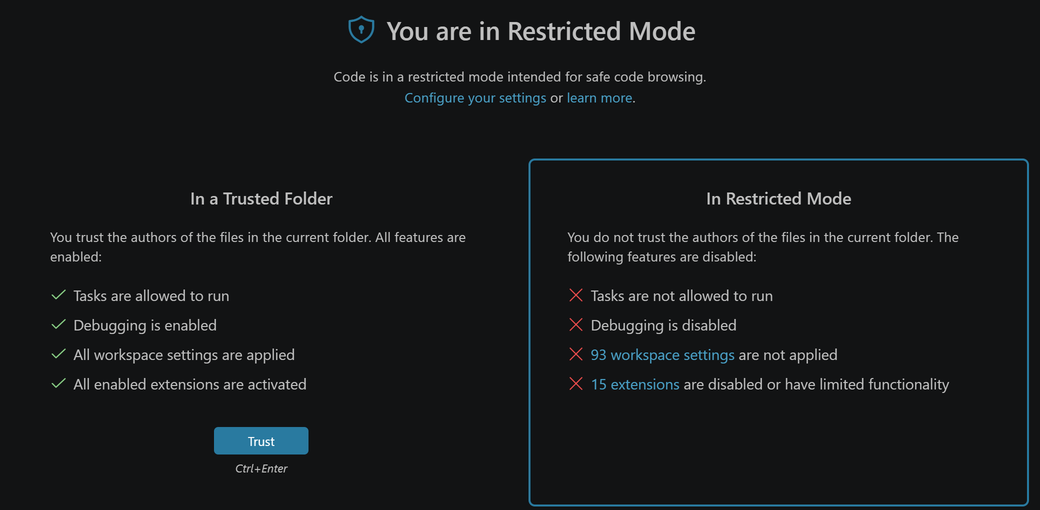
If a bar at the top says Restricted Mode, select Manage, then Trust. R does not run in a folder you have not trusted.
What you should see
The Explorer on the left lists your workspace folders: 00_Inbox, 01_Journal, 02_Literature, 03_Project, and 04_Resources.
If it does not work
If the Explorer shows a different folder, use File, then Open Recent, and pick your workspace from the list.