Check Your Setup
Confirm that R, VS Code, and every package this course needs are ready, and install anything missing.
Prefer to watch first? The walkthrough video Setup shows these steps.
Steps on this page
Steps
- Install AURA Lab R Companion from the Extensions view (Marketplace listing).
- Open VS Code.
- Open the Command Palette: View, then Command Palette… (or Ctrl+Shift+P; Cmd+Shift+P on a Mac).
- Type
AURA: Pick my courseand press Enter. Select MC 501 Research Methods (graduate). - Open the Command Palette again, type
AURA: Check my setup, and press Enter. - If the list shows Install what is missing, select it. The Output panel at the bottom shows R installing the packages.
- When it finishes, run AURA: Check my setup again. It worked if the list’s title ends with everything is installed.
What you should see
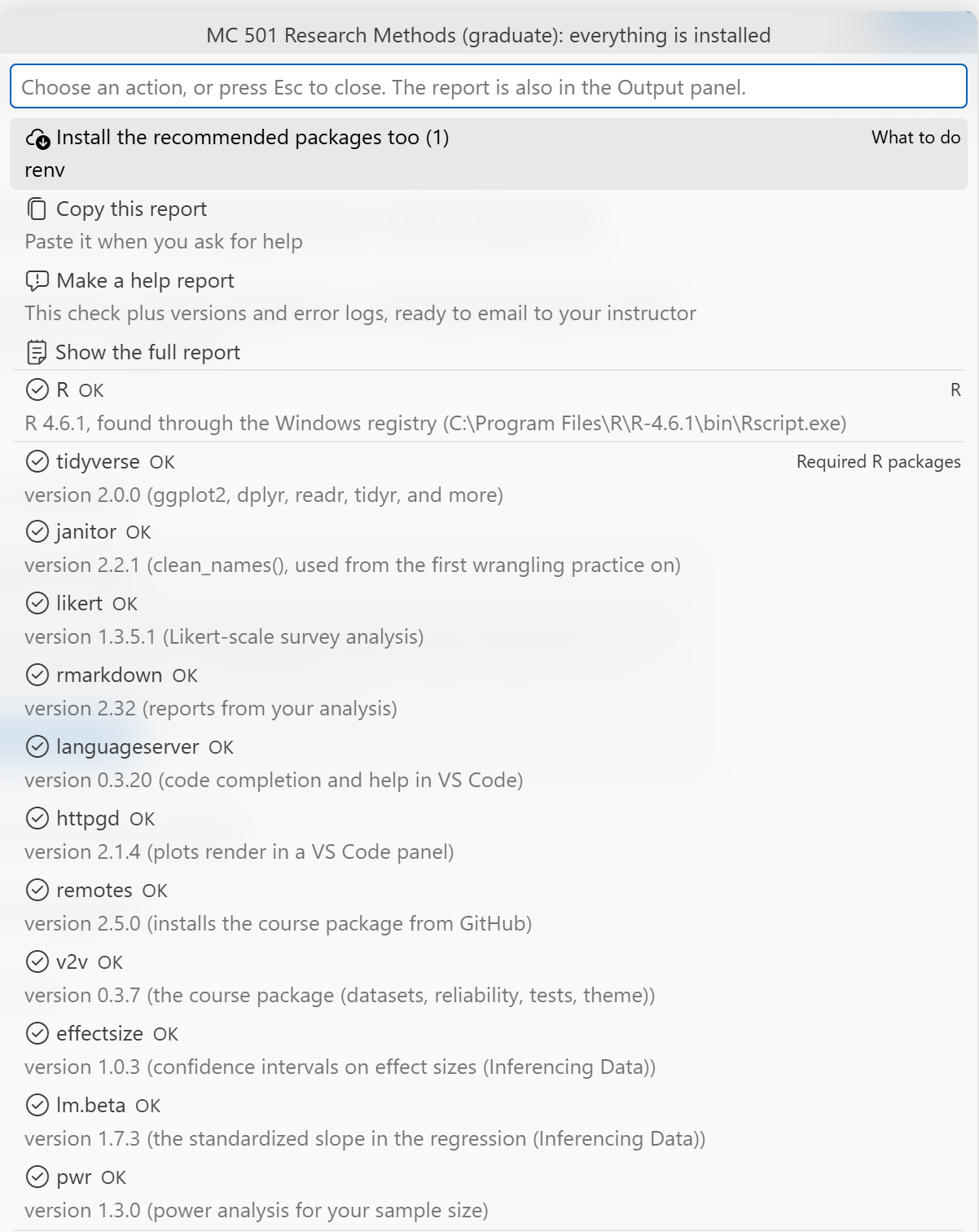
A list opens at the top of VS Code. Its title reads MC 501 Research Methods (graduate): everything is installed, and every required package says OK. Your version numbers may be newer. If the list also offers Install the recommended packages too, you can select it, but the course works without them. Press Esc to close the list; the same report stays in the Output panel.
On a Mac
- XQuartz is the one extra program a Mac may need. Only
View()uses it: without it,View(data)stops with X11 library is missing: install XQuartz from www.xquartz.org. Install it from xquartz.org, log out of your Mac and back in, then open VS Code again. Until then,glimpse(data)shows every column. - Git needs Apple’s Command Line Tools. If a window asks to install the command line developer tools when you commit or clone, select Install. Or open Terminal and run
xcode-select --install. - Check my setup in R Companion 0.7.1 and newer checks both: a missing XQuartz shows as a warning, and missing Command Line Tools show on the Git row.
If it does not work
The first time R opens in VS Code, a notice appears in the bottom-right corner: vscode-R needs bundled sess to attach the session watcher. Click Install bundled sess and wait about a minute. You must say yes: if you click Not now or Don’t ask again, R will not connect to VS Code, and the bottom bar keeps saying R: (not attached).
Missed it? Click the bell icon in the bottom-right corner of VS Code to find the notice again. If it is not there and you have the AURA Lab R Companion, run AURA: Fix R (not attached) from the Command Palette: it closes your R terminals, installs sess and the packages it needs, and opens a new R terminal. Without the R Companion, close VS Code, open R itself (from the Start menu on Windows, or Applications on a Mac), and run these three lines one at a time:
install.packages(c("processx", "later", "jsonlite", "rstudioapi"), repos = "https://cloud.r-project.org")
p <- tail(Sys.glob(file.path(Sys.getenv(if (.Platform$OS.type == "windows") "USERPROFILE" else "HOME"), ".vscode", "extensions", "reditorsupport.r-3*", "dist", "resources", "sess")), 1)
install.packages(p, repos = NULL, type = "source")
Then open VS Code again and start R. The bottom bar should show your R version.
If the list says R was not found, close VS Code completely, open it again, and run AURA: Check my setup once more. A new VS Code window picks up an R you installed after it opened.