Commit and Push with Git
Save a snapshot of your work and send it to your repository on GitHub.
Prefer to watch first? The walkthrough video Commit and Push with Git shows these steps.
Steps on this page
Steps
Open Source Control: in the menu bar at the top, select View, then Source Control. (It is also the icon of three small circles joined by lines in the column of icons on VS Code’s left edge. Keyboard: Ctrl+Shift+G, with Control on a Mac too, not Cmd.)
Under Changes, read the list of files you changed.
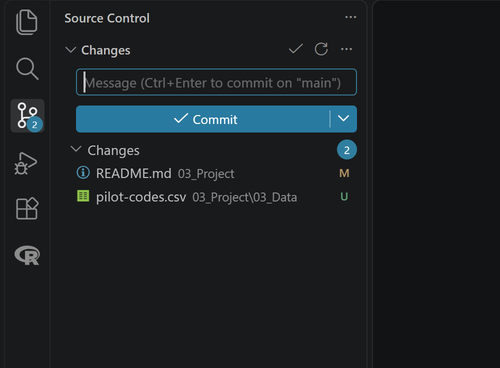
Type a short message in the Message box that says what you did, for example
Add pilot codes.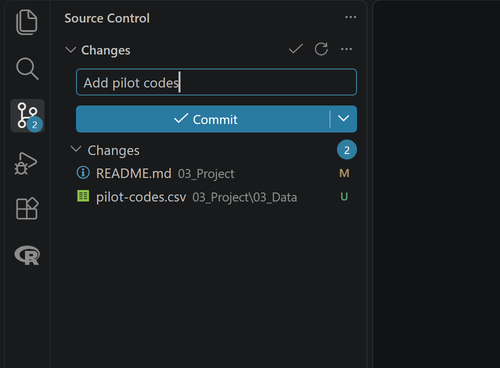
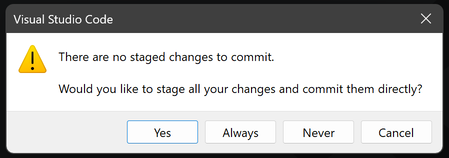
Select Commit. If VS Code asks whether to stage all your changes, select Yes.
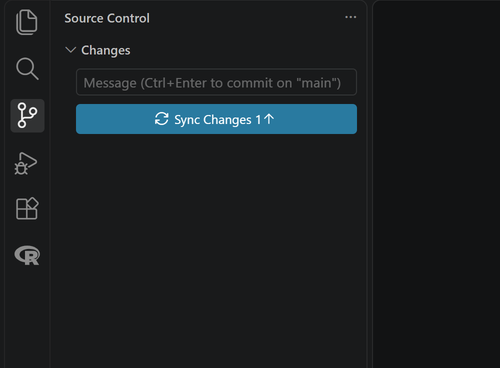
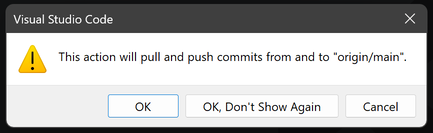
Select Sync Changes to push the commit to GitHub. If VS Code says the action will pull and push commits, select OK.
Open your repository on GitHub and check that the new commit is listed.
What you should see
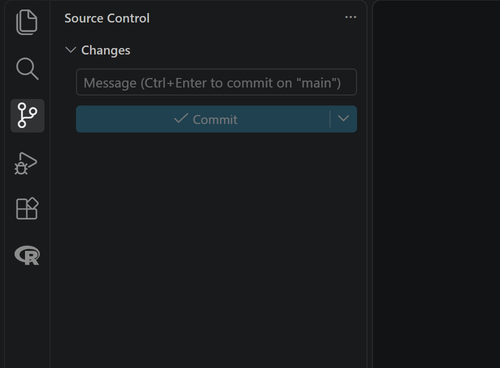
The Changes list empties after you commit, and Sync Changes goes away once the push finishes.
If it does not work
If Git asks who you are, run these two lines in the terminal with your own name and email, then commit again:
git config --global user.name "Your Name"
git config --global user.email "you@example.com"