Read and Code Data in the Data Viewer
Read your sampled messages as a grid and enter codes in coding columns, without changing the original file.
Prefer to watch first? The walkthrough video The data viewer and coding sheet shows these steps.
Steps on this page
Steps
- Open the Command Palette: View, then Command Palette… (or Ctrl+Shift+P; Cmd+Shift+P on a Mac).
- Type
AURA: Open the data viewerand press Enter. - Select Pick a data file (CSV or Excel), choose your sample file (for the worksheet, your coding sheet, the file
coding-form.csvin thedatafolder), then select Open in the data viewer. - Select a column header to sort by it. Select it again to reverse the order.
- Select Add coding column. Type the variable name from your codebook, for example
tone. - Choose Allowed values (a dropdown), then type your codebook values separated by commas, for example
positive, neutral, negative. - When it asks Will you code this variable twice to check your reliability?, choose Code it once, unless you are coding the variable twice for a reliability check.
- Click the first cell in the new column, type the first letters of a code, and press Enter. The cursor moves down one row.
- When you have coded, select Insert rebuild code. It writes the R that joins your codes back onto the data.
What you should see
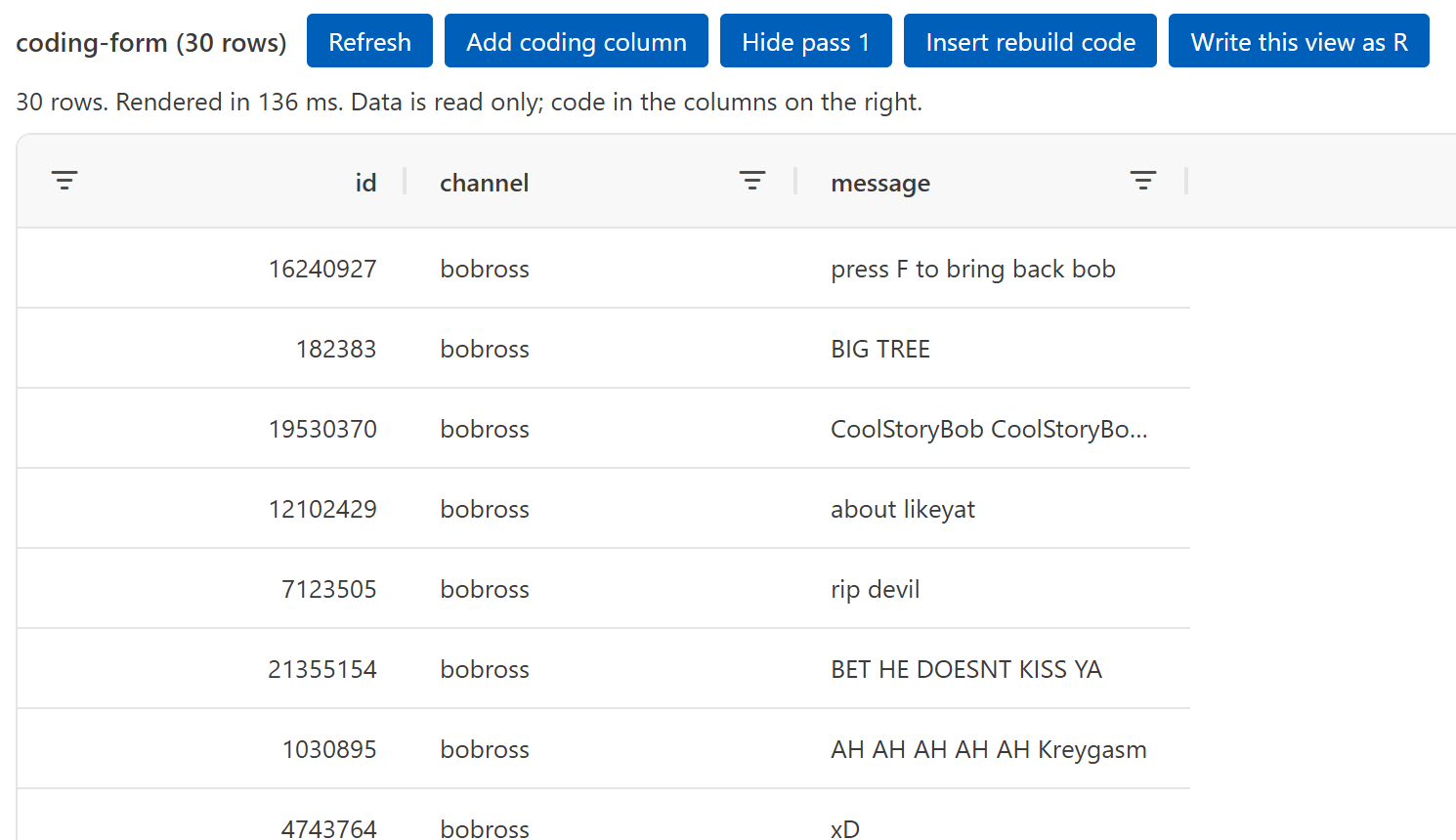
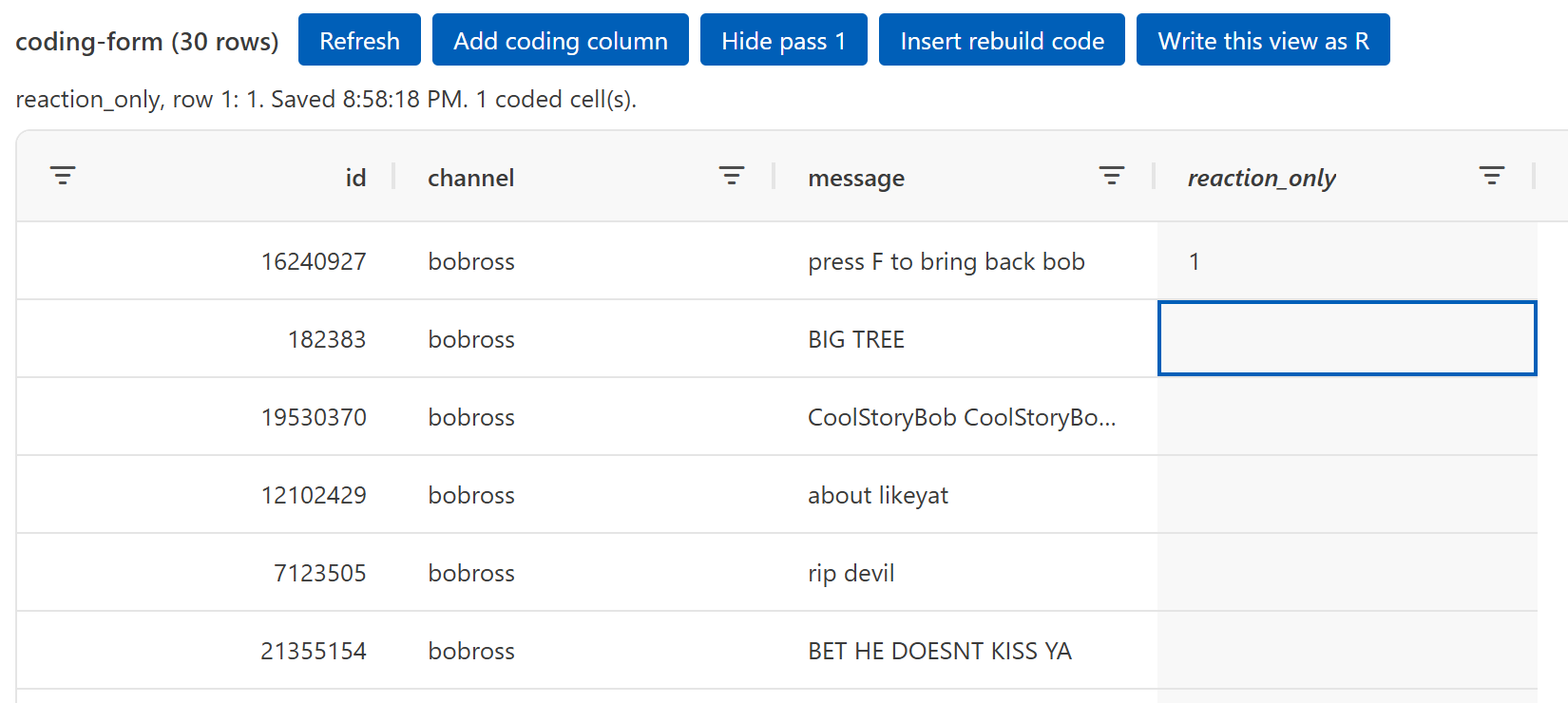
Your codes save by themselves to data/derived/, one row per coded cell. The original CSV never changes.
If it does not work
If you typed a wrong code, select the cell, press Delete to clear it, and type the right code. (Keyboard undo also works: Ctrl+Z, or Cmd+Z on a Mac.)